Posts

Google Classroom September 2018 Updates

Image
Google released 4 more updates for Google Classroom. You can read more about the updates here . I've updated my Google Classroom HyperDoc with information about these recent updates. To see all the updates Google has made to Classroom check out this page. The updates are: Materials on the Classwork page: as promised, we’ve added the ability for teachers to add materials to the Classwork page. With Materials, you can post and organize resources like readings and reference documents. And for those who’ve told us you missed the ability to share materials on the About page, you can now post and organize class resources. This way, teachers and students can find all assignments and class materials in one place. Classwork page for existing classes : you can now add the Classwork page to any classes you created prior to the August launch. Updated design for posting announcements : we’ve changed the design for posting announcements in the Stream to make it faster for teacher...
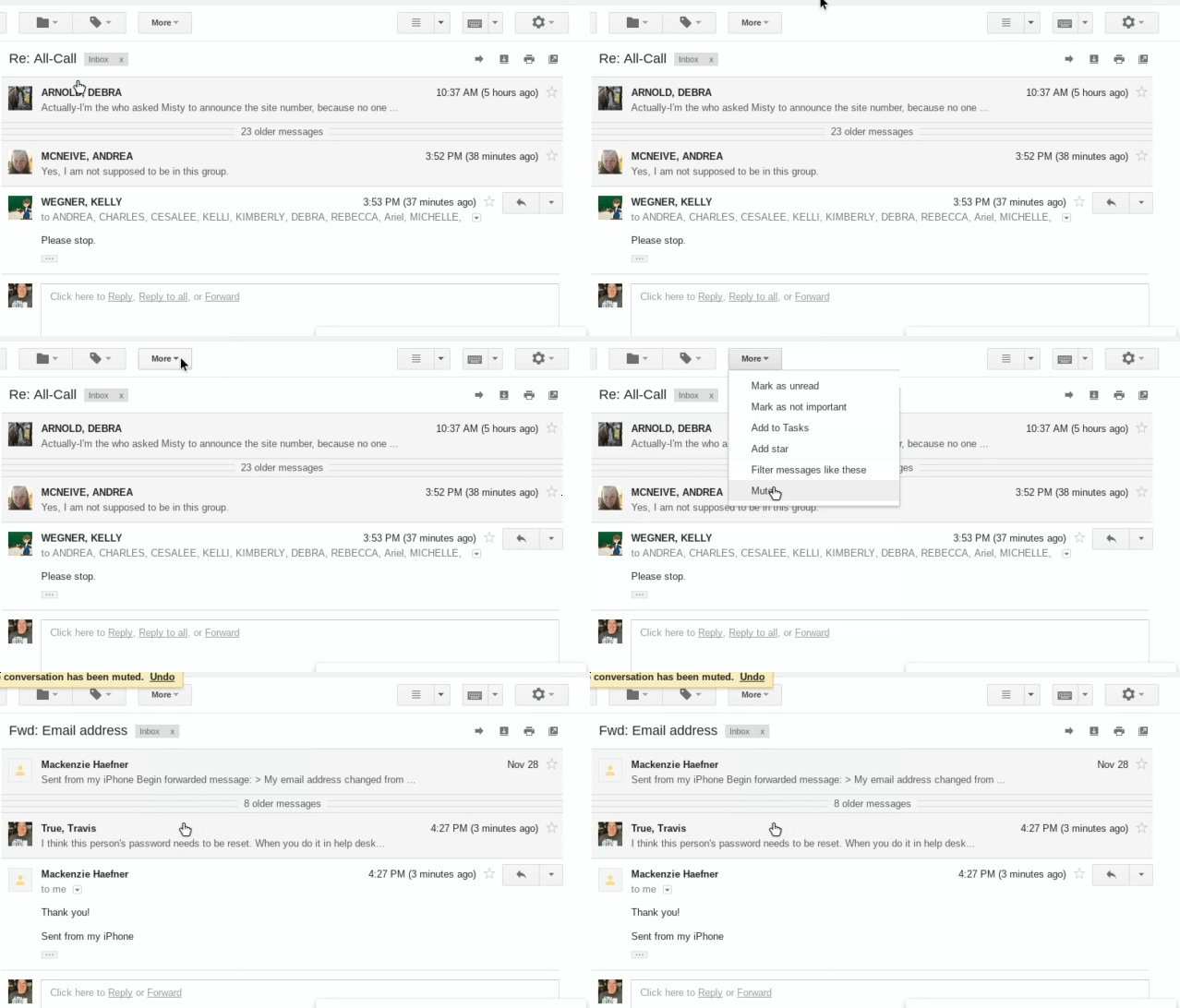
Mute a Gmail message thread

Image
A few times a year, in my district, there is an email that accidentally gets emailed to all of our district staff. There are always a number of people who reply and ask why they are getting this email. Then as the email gets replied to several times, people reply and beg everyone to stop replying all. If you are ever caught in this situation, you can mute the message thread. Muting a message thread archives the thread and you will not receive notification when a new message is sent. The animated GIF below shows where you find this mute button. With the message, thread open click the More button at the top of the message. Click Mute The thread will disappear from your inbox because it is archived. You can find the message again by going to the All Mail label on the left or searching for the thread using the search box at the top of the Gmail screen. 

Embed HTML into NEW Google Sites

Image
A recent update to Google Sites now allows you to copy HTML/Embed code from other websites and embed your content into your site. This is a major update to Sites and allows NEW sites to be more interactive by allowing these resources to be embedded directly into the site. How to embed HTML code into NEW Google Sites Copy the HTML / Embed code from your third party site (i.e. FlipGrid, EdPuzzle, Thinglink, etc.) On the Site page you want to insert your HTML resource click "Embed" from the insert menu on the right, or double click on the page you would like to insert the resource and choose "Embed" from that menu. Choose EMBED CODE from the pop-up window Paste the HTML / Embed code you copied from the other website into the box Click Next You are given a preview of what will be displayed on your Site page. Click Insert if you see your resource. You can resize your resource once it gets inserted on the page, if needed. Publish your site and view your resourc...

New image formatting options for Docs, Slides, and Drawings

Image
Recently Google announced some updates to the way you can format images inserted into Google Docs, Slides and Drawing files. You can now add drop shadow and reflection to your images. Images with transparent backgrounds work best for these features, especially the drop shadow effect. How to access the new formatting features: Insert an image into your file. Select the image by clicking on it. There should be a blue line around your image. Click Format options... button on the toolbar To turn the Drop shadow and/or Reflection feature on, click the check box to the right of the words. Clicking the check box will turn these features on then you can click the triangles to the left of the words to access their settings.

5 Video Response Tools for Students

Image
Recent tools have made it very easy for students (and teachers) to create and share video responses for projects and assessments. These are just a few tools you can use on multiple devices and operating systems. Flipgrid is the leading video discussion platform used by millions of PreK to PhD educators, students, families, and organizations in more than 150 countries! Create a Grid (that's your classroom or group), add Topics to spark the discussion, and your community builds a dialogue as they share short video responses. (source flipgrid.com) FlipGrid might just be the most popular tool right now to capture video responses from students. A simple search on Twitter for #FlipGridFever shows how teachers from all over the country are using FlipGrid in their classroom. FlipGrid can be used with the following devices: iPad, Phones, Chromebook, Windows Computer, Mac Computer (devices must have working webcam)   Are you already using FlipGrid? Please share wi...

Let Students Choose

Image
I was asked to write a guest blog post for EdTechTeam. I was honored to do so. The blog post was titled "Let Students Choose" and focused on letting students choose the technology tool that will highlight their talents, instead of forcing them to use a tool for the sake of using that tool. Below is the link to the blog post! I hope you enjoy! EdTechTeam: Let Students Choose! Highlighting Talents with Student Choice

2017 TPS Innovation Academy Summer Camp

Today was the final day of our Topeka Public Schools Innovation Academy Summer Camp. Our Innovation Academy is a group of teachers who are technology leaders in their respective buildings. These teachers spent four days learning how to use and discussing how to integrate several tools into their classrooms. Tools our Innovation Academy members are excited to use include: Flipgrid , Recap , and  Screencastify DotStorming.com PearDeck.com BigHugeLabs.com GreenScreening with TouchCast Studio iPad app Keynote and iMovie Google MyMaps and  TourBuilder Digital Breakouts And deciding which SAMR level different classroom activities fall into. Thanks for a great week #TPSInnovationAcademy #tpsinnovationacademy Tweets