Posts

Discover the New “Rating” Question Type in Google Forms: A Step-by-Step Guide

Image
A Fresh Way to Collect Feedback in Google Forms Google Forms just got a new feature that’s bound to make surveys, quizzes, and polls more engaging: the "Rating" question type . Whether you’re a teacher collecting feedback from students or someone managing forms for events, this feature allows you to use icons like stars, hearts, or thumbs up to make responses more fun and interactive. With this new addition, creating visually appealing surveys that encourage responses has never been easier. In this step-by-step guide, I’ll walk you through everything you need to know about the Rating question. By the end, you’ll be ready to design forms that not only collect useful data but also delight your respondents. Step 1: Open Google Forms and Start a New Form To begin, head over to Google Forms by going to forms.google.com . Once you're there: Click the blank form or choose a template that suits your needs. Give your form a title and description to inform respondents what it’s...

Google NotebookLM: Revolutionizing Note-Taking for Educators with AI

Image
Google NotebookLM: Revolutionizing Note-Taking for Educators with AI As teachers, school leaders, and district administrators, we’re constantly juggling a ton of information—lesson plans, research, meeting notes, and more. Keeping everything organized can feel overwhelming, but what if I told you there's a new tool that can do some of the heavy lifting for you? Enter NotebookLM, Google’s newest AI-powered note-taking tool. In this post, I’m going to walk you through exactly how NotebookLM works and how it can make a huge difference in how you handle and organize information. Whether you’re pulling together research for a presentation, organizing your next big professional development session, or just trying to streamline your workflow, NotebookLM has something to offer. What Exactly is NotebookLM? Launched in July 2023, NotebookLM is Google’s experimental note-taking tool designed to help you not only collect information but also understand and interact with it. It's like havi...

Unlocking the Power of Google Chrome's "Copy Link to Highlight" Feature

Image
  Unlocking the Power of Google Chrome's "Copy Link to Highlight" Feature Are you tired of scrolling through endless web pages to find that one piece of information someone shared with you? Or perhaps you've been on the other end, trying to direct a friend to a specific section of an article without much success. Enter Google Chrome's "Copy Link to Highlight" feature – your new best friend for precise and efficient web sharing. What is "Copy Link to Highlight"? Launched with Chrome 90, this feature allows you to create a link directly to specific text on a webpage. When someone clicks the link, they are taken not just to the page, but to the exact highlighted text you wanted them to see. It's a game-changer for students, researchers, or anyone who frequently shares web content. How to Use "Copy Link to Highlight" Using this feature is straightforward: Highlight the Text : Open Google Chrome and navigate to the webpage you want to ...

How to Keep Your Chrome Tabs Tidy: A Friendly Guide

How to Keep Your Chrome Tabs Tidy: A Friendly Guide Hey there! If you're anything like me, you've probably found yourself drowning in a sea of browser tabs. You know, when you're trying to juggle work, check out the latest news, and maybe sneak in a bit of online shopping—all at the same time. Well, I stumbled upon a super cool feature in Chrome that's been a total game-changer for me, and I just have to share it with you. It's all about organizing your tabs into neat little groups, and yes, it's as awesome as it sounds! Let's Dive Into Chrome Tab Groups Imagine having all your tabs sorted into cute little bundles, each with its own color. That's what Chrome Tab Groups is all about. It's perfect for anyone looking to declutter their digital space and make their online life a bit more manageable. And the best part? It's super easy to get started. Step-by-Step: Creating Your First Tab Group Just right-click on any tab you've got open and look f...

How to Set Up Email Notifications on a Google Form

Image
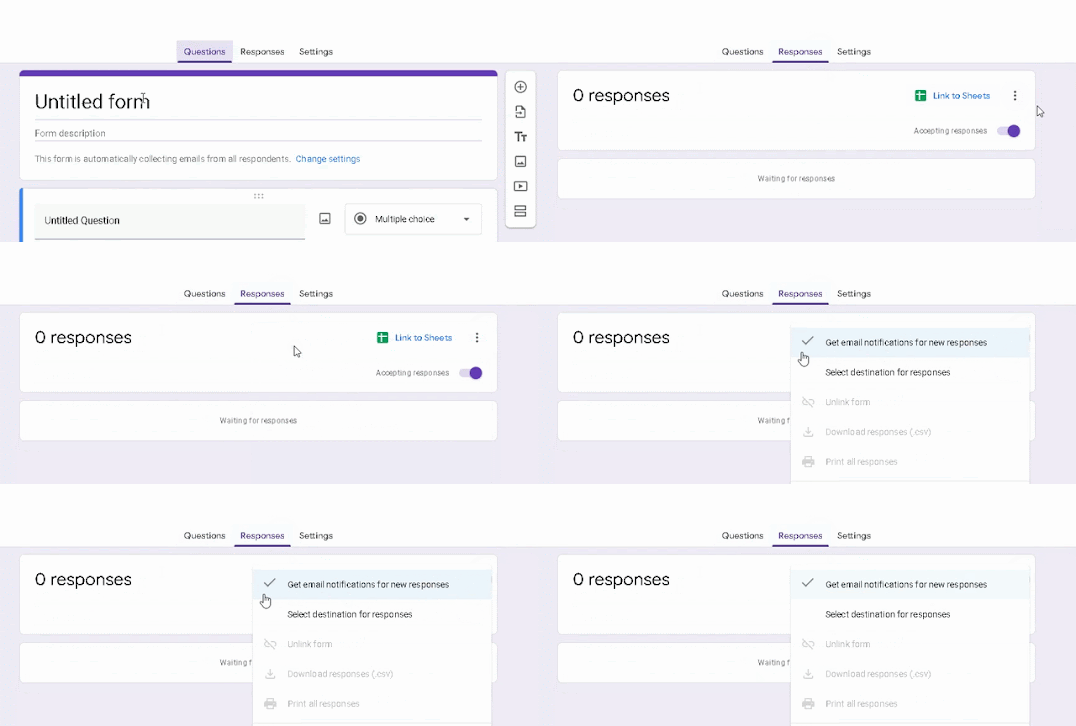
Google Forms is a powerful tool that can be used to collect data from a variety of sources. One of the most useful features of Google Forms is the ability to set up email notifications. This allows you to be notified whenever someone submits a response to your form. To set up email notifications on a Google Form, follow these steps: Open the Google Form that you want to set up email notifications for. Click on the Responses tab. Click on the More button (three dots) in the top right corner of the page. Select Get email notifications for new responses. Once you have set up email notifications, you will receive an email whenever someone submits a response to your form. The email will include the following information: The name of the person who submitted the form The date and time the form was submitted The responses to the form fields Email notifications can be a great way to stay up-to-date on the responses to your Google Forms. This can be helpful for a variety...

Download Your School Data in a Few Easy Steps with Google Takeout

Image
Google Takeout is a service that allows you to download a copy of your data from Google. This includes your Gmail messages, Google Drive files, Google Photos photos, and more. If you are a teacher leaving your district (or have students who are graduating or transferring schools), you may want to download a copy of your data from your school Google Account. This way, you will have a backup of your work and files in case you lose access to your school account. In this blog post, I will show you how to use Google Takeout to download the data from your school Google Account. Step 1: Go to Google Takeout The first step is to go to Google Takeout. You can do this by visiting the following website: takeout.google.com Step 2: Sign in to your Google Account Once you are on the Google Takeout website, you will need to sign in to your Google Account. This is the same account that you use for your school email and Google Drive. Step 3: Select the data you want to download On the Google Takeout we...

How do I know when someone fills out my form?

Image
I was asked recently how do I know when my Google Form is filled out. The steps below show how to set up email notifications for your Google Form so you will be notified every time your form is filled out. Any user who is a collaborator on your form can also set up email notifications.

How do I update my Chrome browser?

Image
  via GIPHY I was recently asked how can someone update their Chrome browser. These are instructions for updating your Chrome browser on a desktop or laptop. PC and Mac instructions are the same! I'll post how to update a Chromebook in a separate post. How do I update my Google Chrome browser? I was recently asked how can someone update their Chrome browser. These are instructions for updating your Chrome browser on a desktop or laptop. PC and Mac instructions are the same! I'll post how to update a Chromebook in a separate post. Date: November 5, 2022 Author: Travis True Source: Tango 1. Open your Chrome browser and click the 3 dots next to your profile picture. 2. Click on Settings. 3. On the left side of the settings screen, click About Chrome at the bottom 4. Chrome will automatically check if an update is available. If one is available the update will automtically download. You will see the progress here. When the download is complete, you will see a...

How do I change margins in a Google Doc

Image
How do I change margins in a Google Doc? via GIPHY I was asked recently how can someone change the margin settings in a Google Doc. This video shows you how to access the Page Settings of a Doc. You will find margin settings, page orientation, page size, and page color in the Page Settings section. How do I change margins for a Google Doc? I was asked recently how can someone change the margin settings in a Google Doc. This video shows you how to access the Page Settings of a Doc. You will find margin settings, page orientation, page size, and page color in the Page Settings section. Date: November 5, 2022 Author: Travis True Source: Tango 1. Open a Google Doc Tip: You can type docs.new into your Chrome browser and a new Google Doc will be created. 2. Click on File 3. Click on Page setup 4. Margin settings are found on the right side of the window. 5. You can also change the page orientation of the doc 6. You can change Paper Size and Page Color of the do...

Google Chrome - Sharing a website

Image
 Beginning in Google Chrome version 98, you will find a new icon to the right side of the Omni bar (address bar). This is the new share button for sharing websites. When you visit a website and click on this icon these are the share options you have access to: Copy the link to your website Send the website to another device. You must be signed in to the same account on both devices.(see video below for more) Generate a QR code and download it. Share to your favorite social media site. @travistrue Google Chrome share webpages. #TechTok #micropd #google #googlechrome #teachersoftiktok ♬ original sound - Travis True @travistrue Update to a previous video. This shows how to generate a QR code and how to share pages to other devices #micropd #TechTok #google ♬ original sound - Travis True
Image
Wordle is taking over the world. It is a simple game. You get 6 chances to guess a 5-letter word. The unique part of the game is when you submit a word the game will highlight letters if they are in the word. Green means the letter is in the word and in the correct location and Yellow means the letter is in the word, but not in the correct location. Here is a screenshot of the instructions explaining this: When I played this for the first time, I couldn't help think that an activity like this could be easily created in Google Sheets using the Conditional Formatting rules. With Conditional Formatting cells, rows, or columns can be formatted to change text or background color if they meet certain conditions. For example, if they contain a certain word or a number.  I've created a video showing you how to set this activity up in Google Sheets. I'm also providing the spreadsheet from the video that you can use as a template. Click here for the Google Sheets Wordle Template

Change page layout in Google Docs

Image
I was asked the other day.... (All I could think about the beginning of any Letterkenny episode when I typed that 😁) Anyway...... I was asked the other day how do you change the page layout in Google Docs. Here is the official answer from Google Support , but let me show you. 1. In Google Docs, click on File 2. Then click on Page Setup 3. Then you can change the page orientation to landscape. 4. You can apply this change to the whole document or choose which pages to only apply this change to. Page setup is where you can also change the margins and page color of the document. 5 STEPS 1. The first step is to open your  Google Docs and click File 2. Click Page setup. 3. Click Landscape You can choose to apply the change to the whole document or just selected pages. You can also change...

Renaming my blog

One of my goals this school year was to get back to blogging on a more consistent basis. I struggled with finding topics / information to share and blog about. Then I had an epiphany the other day. I'll share what teachers and principals in my district are asking for help with. This came about when my supervisor called me 3 times asking Google Doc formatting questions. I thought, this should be the stuff I'm sharing. That's the story behind the name change and hopefully you find the information helpful.

Publishing Google Docs, Slides, and Spreadsheets

Image
Have you created a Google Doc and needed to share it publicly (i.e. with parents) but didn't want to enter all the parent emails into the doc for them to view. Did you know you can publish a Doc, Slide presentation, or Spreadsheet to the web and then share the published link with people outside of your school for them to view? Students can also use the "Publish to the web" setting to create very basic websites using Google Docs. The nice thing about the "Publish to the web" setting is once the document is published, any changes to the document will automatically update to the published version without the need of resharing the published link. This can be used in Google Slides with a presentation or an interactive presentation. Also, data in a spreadsheet can be displayed, updated as needed, and published to the web for others to view without sharing the spreadsheet or document.

Quickly Create Google Docs, Spreadsheets, Presentations, and Forms

Image
Did you know, you can quickly create Google Docs, Spreadsheets, Presentations, and Forms without going to Google Drive.  Instead of going to Google Drive, clicking New, and choosing the type of file you want to create, go to your Omni bar (address bar) and type in the type of the file with .new at the end. Type these shortcuts into the Omni bar (address bar) and press enter on your keyboard, a new file will be created and saved into your Google Drive folder. If you want to create a new Google Doc type docs.new  If you want to create a new Google Sheet type sheets.new If you want to create a new Google Slide type slides.new If you want to create a new Google Form type forms.new @travistrue Quickly create new Google Docs, presentations, spreadsheets, and forms ##TechTok ##MicroPD ♬ original sound - Travis True

Finding and downloading free sounds and music from YouTube

Image
Have you ever had students try to find free sound effects or background music to use in digital projects? YouTube has the Audio Library that offers free (there are some that will need attribution). Below is a video and step sheet showing how to find and download these free sounds and songs. @travistrue Download free background music and sound effects in ##YouTube ##TechTok ##MicroPD ♬ original sound - Travis True Here's an interactive tutorial https://www.iorad.com/player/1732241/Youtube---Finding-and-downloading-free-sounds-and-music-for-school-projects- 7 STEPS 1. The first step is to open YouTube and click on your profile picture 2. Click YouTube Studio 3. Click Audio library 4. To preview the song or sound click Play audio track button ...

Viewing Google Form Summary Response Data

Image
We have a form our building leaders use when they do their informal walkthroughs of classrooms. Last year they were allowed to modify the "district" form with some more questions that were specific to their school. This year the form is the same form across the district (I did make a copy of the form for each school). I gave the building leaders view-only access to the folder that has the form, response spreadsheet and other files associated with the form. Today one school asked if they could access the form's summary response data. This is the page in the editing side of the form that displays the data graphically in charts. They liked being able to quickly see the data or where they need to focus their walkthroughs on. The problem with this is I would have to give edit rights to the building leaders. I don't want to take the risk of the building leaders making changes to the form. So I get to digging...... I knew I could turn on the view form summary response ...

Audio Support in Google Slides

Image
Google announced via their GSuite Updates blog that users will now be able to embed / insert mp3 or WAV audio files directly into Google Slides presentations. This is a huge update for Google Slides and something teachers have been asking for a long time. You should start seeing this feature with-in the next couple weeks. You will see a new option under the Insert menu. Click on Insert then clicking Audio will prompt you to select an audio file that is saved into your Google Drive. This means you need to make sure your mp3 / WAV file will need to be saved in your Google Drive prior to inserting it in a Slides presentation. You will only see the audio files that are in your Drive. You can choose to use files from your Team Drive folders or even files that are found in Shared with me. Select the audio file you want to use and click the blue Select button. When the audio file is selected a speaker icon is placed on the current slide you are on. Click to select the icon and cl...

Google Classroom September 2018 Updates

Image
Google released 4 more updates for Google Classroom. You can read more about the updates here . I've updated my Google Classroom HyperDoc with information about these recent updates. To see all the updates Google has made to Classroom check out this page. The updates are: Materials on the Classwork page: as promised, we’ve added the ability for teachers to add materials to the Classwork page. With Materials, you can post and organize resources like readings and reference documents. And for those who’ve told us you missed the ability to share materials on the About page, you can now post and organize class resources. This way, teachers and students can find all assignments and class materials in one place. Classwork page for existing classes : you can now add the Classwork page to any classes you created prior to the August launch. Updated design for posting announcements : we’ve changed the design for posting announcements in the Stream to make it faster for teacher...

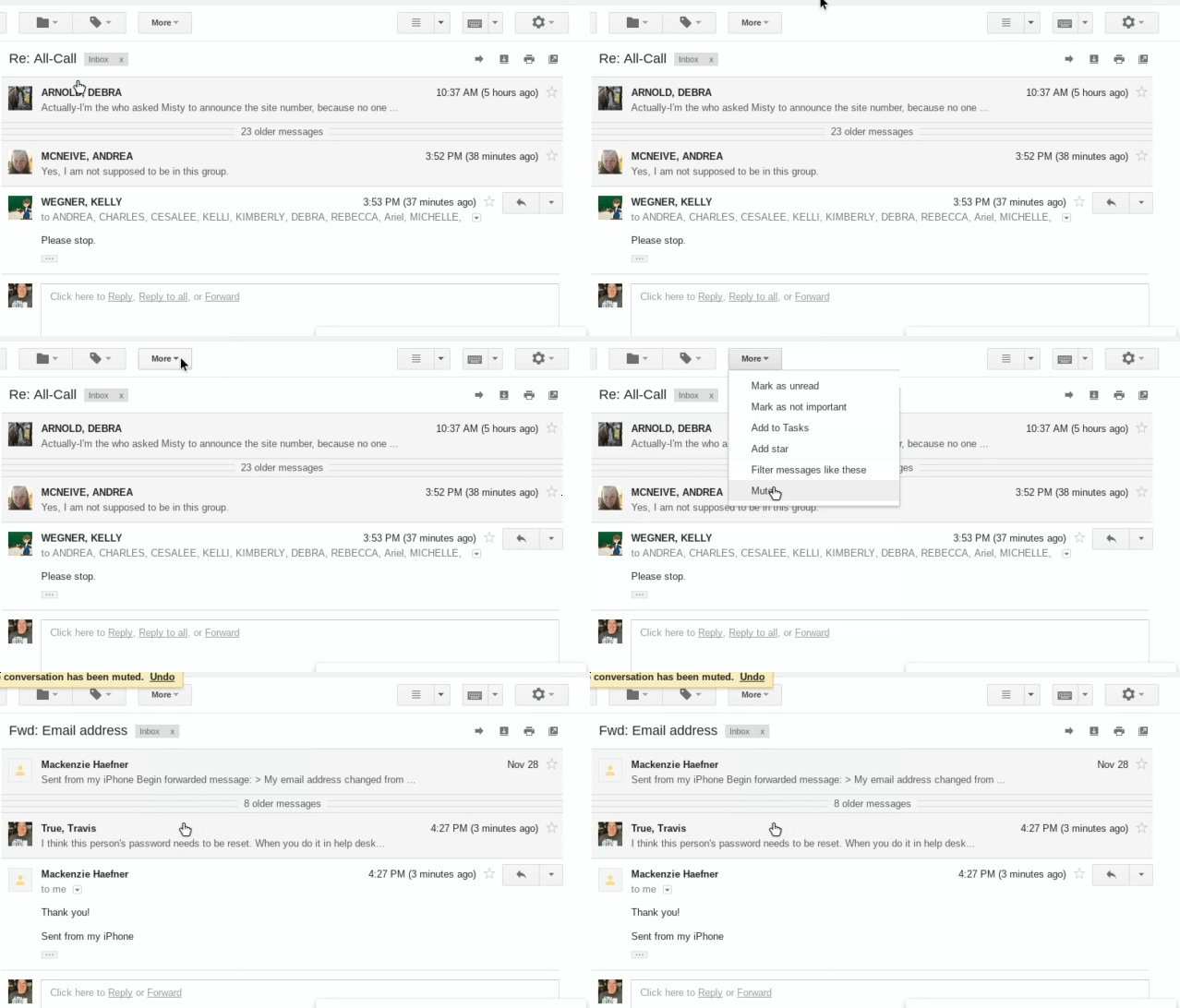
Mute a Gmail message thread

Image
A few times a year, in my district, there is an email that accidentally gets emailed to all of our district staff. There are always a number of people who reply and ask why they are getting this email. Then as the email gets replied to several times, people reply and beg everyone to stop replying all. If you are ever caught in this situation, you can mute the message thread. Muting a message thread archives the thread and you will not receive notification when a new message is sent. The animated GIF below shows where you find this mute button. With the message, thread open click the More button at the top of the message. Click Mute The thread will disappear from your inbox because it is archived. You can find the message again by going to the All Mail label on the left or searching for the thread using the search box at the top of the Gmail screen.