Posts

Quickly Create Google Docs, Spreadsheets, Presentations, and Forms

Image
Did you know, you can quickly create Google Docs, Spreadsheets, Presentations, and Forms without going to Google Drive.  Instead of going to Google Drive, clicking New, and choosing the type of file you want to create, go to your Omni bar (address bar) and type in the type of the file with .new at the end. Type these shortcuts into the Omni bar (address bar) and press enter on your keyboard, a new file will be created and saved into your Google Drive folder. If you want to create a new Google Doc type docs.new  If you want to create a new Google Sheet type sheets.new If you want to create a new Google Slide type slides.new If you want to create a new Google Form type forms.new @travistrue Quickly create new Google Docs, presentations, spreadsheets, and forms ##TechTok ##MicroPD ♬ original sound - Travis True

Finding and downloading free sounds and music from YouTube

Image
Have you ever had students try to find free sound effects or background music to use in digital projects? YouTube has the Audio Library that offers free (there are some that will need attribution). Below is a video and step sheet showing how to find and download these free sounds and songs. @travistrue Download free background music and sound effects in ##YouTube ##TechTok ##MicroPD ♬ original sound - Travis True Here's an interactive tutorial https://www.iorad.com/player/1732241/Youtube---Finding-and-downloading-free-sounds-and-music-for-school-projects- 7 STEPS 1. The first step is to open YouTube and click on your profile picture 2. Click YouTube Studio 3. Click Audio library 4. To preview the song or sound click Play audio track button ...

Viewing Google Form Summary Response Data

Image
We have a form our building leaders use when they do their informal walkthroughs of classrooms. Last year they were allowed to modify the "district" form with some more questions that were specific to their school. This year the form is the same form across the district (I did make a copy of the form for each school). I gave the building leaders view-only access to the folder that has the form, response spreadsheet and other files associated with the form. Today one school asked if they could access the form's summary response data. This is the page in the editing side of the form that displays the data graphically in charts. They liked being able to quickly see the data or where they need to focus their walkthroughs on. The problem with this is I would have to give edit rights to the building leaders. I don't want to take the risk of the building leaders making changes to the form. So I get to digging...... I knew I could turn on the view form summary response ...

Audio Support in Google Slides

Image
Google announced via their GSuite Updates blog that users will now be able to embed / insert mp3 or WAV audio files directly into Google Slides presentations. This is a huge update for Google Slides and something teachers have been asking for a long time. You should start seeing this feature with-in the next couple weeks. You will see a new option under the Insert menu. Click on Insert then clicking Audio will prompt you to select an audio file that is saved into your Google Drive. This means you need to make sure your mp3 / WAV file will need to be saved in your Google Drive prior to inserting it in a Slides presentation. You will only see the audio files that are in your Drive. You can choose to use files from your Team Drive folders or even files that are found in Shared with me. Select the audio file you want to use and click the blue Select button. When the audio file is selected a speaker icon is placed on the current slide you are on. Click to select the icon and cl...

Google Classroom September 2018 Updates

Image
Google released 4 more updates for Google Classroom. You can read more about the updates here . I've updated my Google Classroom HyperDoc with information about these recent updates. To see all the updates Google has made to Classroom check out this page. The updates are: Materials on the Classwork page: as promised, we’ve added the ability for teachers to add materials to the Classwork page. With Materials, you can post and organize resources like readings and reference documents. And for those who’ve told us you missed the ability to share materials on the About page, you can now post and organize class resources. This way, teachers and students can find all assignments and class materials in one place. Classwork page for existing classes : you can now add the Classwork page to any classes you created prior to the August launch. Updated design for posting announcements : we’ve changed the design for posting announcements in the Stream to make it faster for teacher...

Mute a Gmail message thread

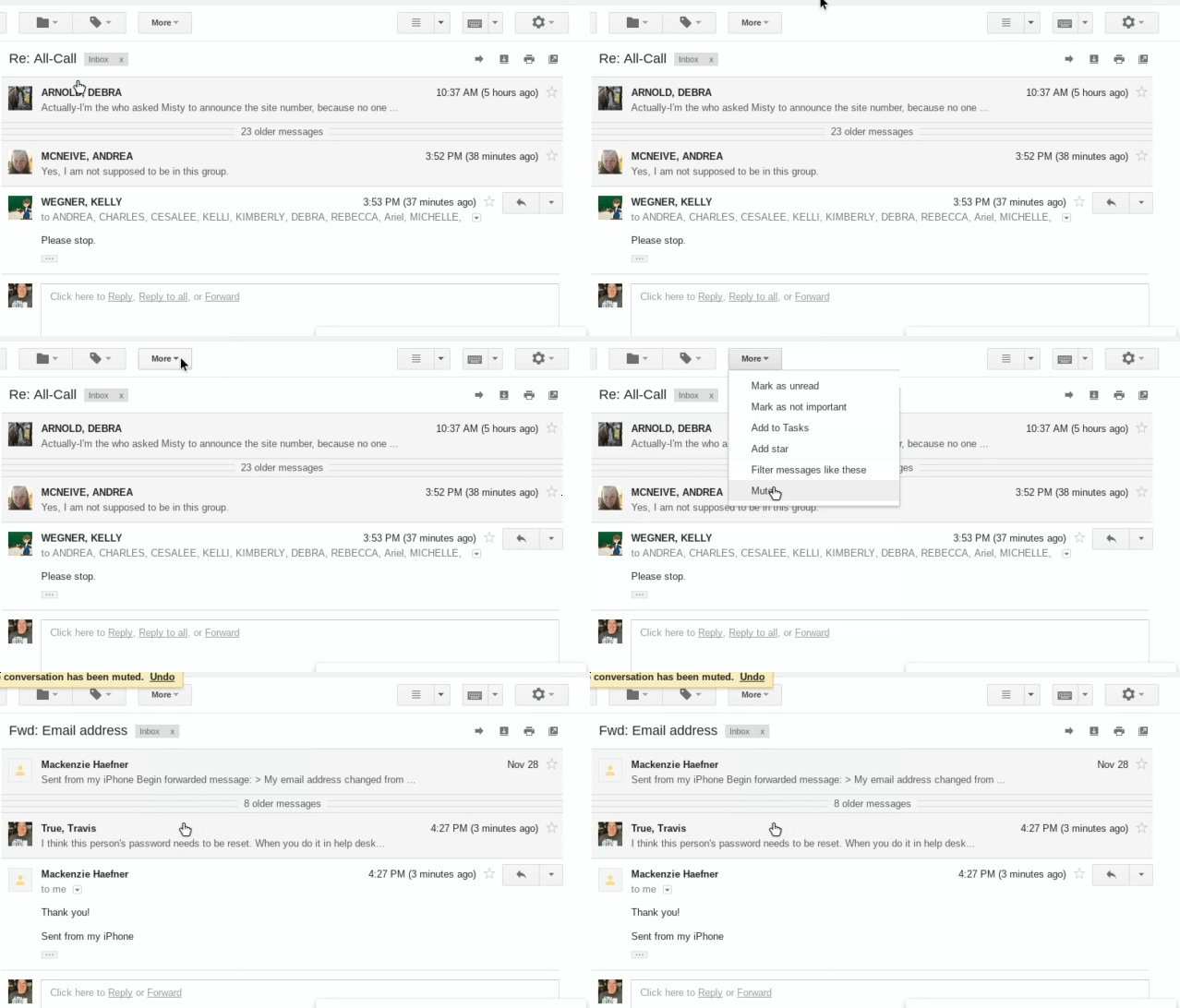
Image
A few times a year, in my district, there is an email that accidentally gets emailed to all of our district staff. There are always a number of people who reply and ask why they are getting this email. Then as the email gets replied to several times, people reply and beg everyone to stop replying all. If you are ever caught in this situation, you can mute the message thread. Muting a message thread archives the thread and you will not receive notification when a new message is sent. The animated GIF below shows where you find this mute button. With the message, thread open click the More button at the top of the message. Click Mute The thread will disappear from your inbox because it is archived. You can find the message again by going to the All Mail label on the left or searching for the thread using the search box at the top of the Gmail screen. 

Embed HTML into NEW Google Sites

Image
A recent update to Google Sites now allows you to copy HTML/Embed code from other websites and embed your content into your site. This is a major update to Sites and allows NEW sites to be more interactive by allowing these resources to be embedded directly into the site. How to embed HTML code into NEW Google Sites Copy the HTML / Embed code from your third party site (i.e. FlipGrid, EdPuzzle, Thinglink, etc.) On the Site page you want to insert your HTML resource click "Embed" from the insert menu on the right, or double click on the page you would like to insert the resource and choose "Embed" from that menu. Choose EMBED CODE from the pop-up window Paste the HTML / Embed code you copied from the other website into the box Click Next You are given a preview of what will be displayed on your Site page. Click Insert if you see your resource. You can resize your resource once it gets inserted on the page, if needed. Publish your site and view your resourc...